How to Build Intro Slider for Your Android Application?
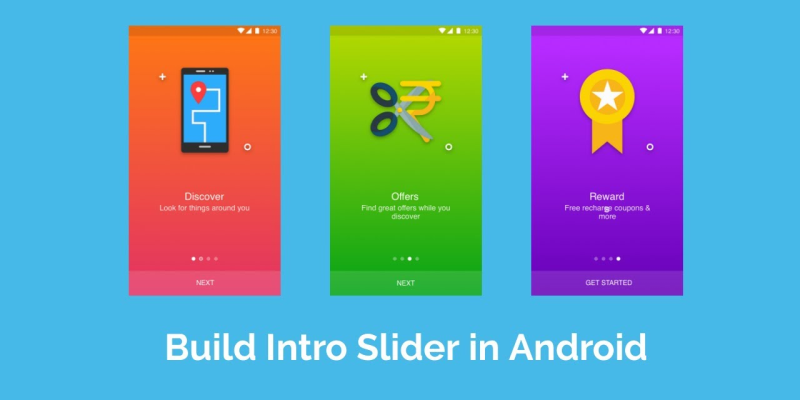
Are you wanted to add Intro Screens in your application? If yes, it is considered as the best way of showcasing the essential features of your application.
No matter whether you have an experience in developing or not, we will explain you how to add an intro slider to your application, where user can easily swipe through few slides before getting into application.
Let’s Get Started!
1) Create a new project “RadioButtonDemo”. Give name and proper package name and choose appropriate location demo for project.

2) Choose Min support SDK to use this project.
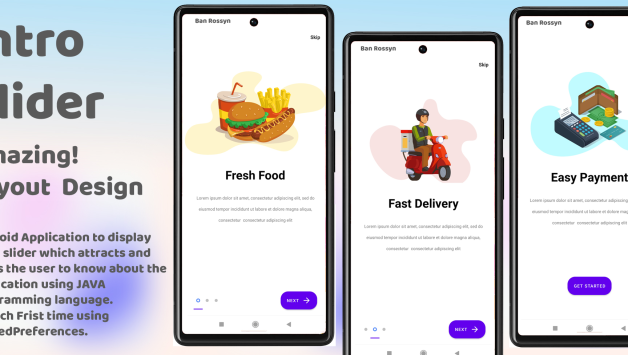
3) Select Add No Activity
4) Now, you can create XML file and use Custom view button in it.
1.activity_welcome.xml
<?xml version=“1.0” encoding=“utf-8”?>
<RelativeLayoutxmlns:android=”http://schemas.android.com/apk/res/android”
xmlns:app=“http://schemas.android.com/apk/res-auto”
xmlns:tools=“http://schemas.android.com/tools”
android:layout_width=“match_parent”
android:layout_height=“match_parent”
tools:showIn=“@layout/activity_welcome”>
<android.support.v4.view.ViewPager
android:id=“@+id/view_pager”
android:layout_width=“match_parent”
android:layout_height=“match_parent” />
<LinearLayout
android:id=“@+id/layoutDots”
android:layout_width=“match_parent”
android:layout_height=“@dimen/dots_height”
android:layout_alignParentBottom=“true”
android:layout_marginBottom=“@dimen/dots_margin_bottom”
android:gravity=“center”
android:orientation=“horizontal”/>
<View
android:layout_width=“match_parent”
android:layout_height=“1dp”
android:alpha=“.5”
android:layout_above=“@id/layoutDots”
android:background=“@android:color/white” />
</RelativeLayout>
2.slide1.xml
<?xml version=“1.0” encoding=“utf-8”?>
<RelativeLayoutxmlns:android=”http://schemas.android.com/apk/res/android”
android:layout_width=“match_parent”
android:layout_height=“match_parent”
android:background=“@color/bg_screen1”>
<LinearLayout
android:layout_width=“wrap_content”
android:layout_height=“wrap_content”
android:layout_centerInParent=“true”
android:gravity=“center_horizontal”
android:orientation=“vertical”>
<TextView
android:layout_width=“wrap_content”
android:layout_height=“wrap_content”
android:text=“Slide 1”
android:textColor=“@android:color/white”
android:textSize=“@dimen/slide_title”
android:textStyle=“bold” />
</LinearLayout>
</RelativeLayout>
3.slide2.xml
<?xml version=“1.0” encoding=“utf-8”?>
<RelativeLayoutxmlns:android=”http://schemas.android.com/apk/res/android”
android:layout_width=“match_parent”
android:layout_height=“match_parent”
android:background=“@color/bg_screen2”>
<LinearLayout
android:layout_width=“wrap_content”
android:layout_height=“wrap_content”
android:layout_centerInParent=“true”
android:gravity=“center_horizontal”
android:orientation=“vertical”>
<TextView
android:layout_width=“wrap_content”
android:layout_height=“wrap_content”
android:text=“Slide 1”
android:textColor=“@android:color/white”
android:textSize=“@dimen/slide_title”
android:textStyle=“bold” />
</LinearLayout>
</RelativeLayout>
4.slide3.xml
<?xml version=“1.0” encoding=“utf-8”?>
<RelativeLayoutxmlns:android=”http://schemas.android.com/apk/res/android”
android:layout_width=“match_parent”
android:layout_height=“match_parent”
android:background=“@color/bg_screen3”>
<LinearLayout
android:layout_width=“wrap_content”
android:layout_height=“wrap_content”
android:layout_centerInParent=“true”
android:gravity=“center_horizontal”
android:orientation=“vertical”>
<TextView
android:layout_width=“wrap_content”
android:layout_height=“wrap_content”
android:text=“Slide 1”
android:textColor=“@android:color/white”
android:textSize=“@dimen/slide_title”
android:textStyle=“bold” />
</LinearLayout>
</RelativeLayout>
5.slide4.xml
<?xml version=“1.0” encoding=“utf-8”?>
<RelativeLayoutxmlns:android=”http://schemas.android.com/apk/res/android”
android:layout_width=“match_parent”
android:layout_height=“match_parent”
android:background=“@color/bg_screen4”>
<LinearLayout
android:layout_width=“wrap_content”
android:layout_height=“wrap_content”
android:layout_centerInParent=“true”
android:gravity=“center_horizontal”
android:orientation=“vertical”>
<TextView
android:layout_width=“wrap_content”
android:layout_height=“wrap_content”
android:text=“Slide 1”
android:textColor=“@android:color/white”
android:textSize=“@dimen/slide_title”
android:textStyle=“bold” />
</LinearLayout>
</RelativeLayout>
- colors.xml
<!– Screens background color–>
<color name=”bg_screen1″>#f64c73</color>
<color name=”bg_screen2″>#20d2bb</color>
<color name=”bg_screen3″>#3395ff</color>
<color name=”bg_screen4″>#c873f4</color>
5) Create class for Mainactivity
packagecom.demo.introsliderdemo;
importandroid.content.Context;
importandroid.graphics.Color;
importandroid.os.Build;
importandroid.os.Bundle;
importandroid.support.v4.view.PagerAdapter;
importandroid.support.v4.view.ViewPager;
importandroid.support.v7.app.AppCompatActivity;
importandroid.text.Html;
importandroid.view.LayoutInflater;
importandroid.view.View;
importandroid.view.ViewGroup;
importandroid.view.Window;
importandroid.view.WindowManager;
importandroid.widget.LinearLayout;
importandroid.widget.TextView;
public class MainActivityextends AppCompatActivity {
privateViewPagerpager;
privateMyViewPagerAdapteradapter;
privateLinearLayoutdotsLayout;
privateTextView[] circleIndicator;
privateint[] pageLayouts;
@Override
protected void onCreate(Bundle savedInstanceState) {
super.onCreate(savedInstanceState);
// Checking for first time launch – before calling setContentView()
// Making notification bar transparent
if(Build.VERSION.SDK_INT>= 21) {
getWindow().getDecorView().setSystemUiVisibility(View.SYSTEM_UI_FLAG_LAYOUT_STABLE | View.SYSTEM_UI_FLAG_LAYOUT_FULLSCREEN);
}
setContentView(R.layout.activity_welcome);
pager= (ViewPager) findViewById(R.id.view_pager);
dotsLayout= (LinearLayout) findViewById(R.id.layoutDots);
// pageLayouts of all welcome sliders
// add few more pageLayouts if you want
pageLayouts= new int[]{
R.layout.slide1,
R.layout.slide2,
R.layout.slide3,
R.layout.slide4};
// adding bottom circleIndicator
addBottomDots(0);
// making notification bar transparent
changeStatusBarColor();
adapter= new MyViewPagerAdapter();
pager.setAdapter(adapter);
}
private void addBottomDots(intcurrentPage) {
circleIndicator= new TextView[pageLayouts.length];
int[] colorsActive = getResources().getIntArray(R.array.array_dot_active);
int[] colorsInactive = getResources().getIntArray(R.array.array_dot_inactive);
dotsLayout.removeAllViews();
for(inti = 0; i <circleIndicator.length; i++) {
circleIndicator[i] = new TextView(this);
circleIndicator[i].setText(Html.fromHtml(“•”));
circleIndicator[i].setTextSize(35);
circleIndicator[i].setTextColor(colorsInactive[currentPage]);
dotsLayout.addView(circleIndicator[i]);
}
if(circleIndicator.length>0)
circleIndicator[currentPage].setTextColor(colorsActive[currentPage]);
}
privateintgetItem(inti) {
returnpager.getCurrentItem() + i;
}
// viewpager change listener
ViewPager.OnPageChangeListenerviewPagerPageChangeListener= new ViewPager.OnPageChangeListener() {
@Override
public void onPageSelected(intposition) {
addBottomDots(position);
}
@Override
public void onPageScrolled(intarg0, float arg1, intarg2) {
}
@Override
public void onPageScrollStateChanged(intarg0) {
}
};
/**
* Making notification bar transparent
*/
private void changeStatusBarColor() {
if(Build.VERSION.SDK_INT>= Build.VERSION_CODES.LOLLIPOP) {
Window window = getWindow();
window.addFlags(WindowManager.LayoutParams.FLAG_DRAWS_SYSTEM_BAR_BACKGROUNDS);
window.setStatusBarColor(Color.TRANSPARENT);
}
}
/**
* View pager adapter
*/
public class MyViewPagerAdapterextends PagerAdapter {
privateLayoutInflaterlayoutInflater;
publicMyViewPagerAdapter() {
}
@Override
publicObject instantiateItem(ViewGroup container, intposition) {
layoutInflater= (LayoutInflater) getSystemService(Context.LAYOUT_INFLATER_SERVICE);
View view = layoutInflater.inflate(pageLayouts[position], container, false);
container.addView(view);
returnview;
}
@Override
publicintgetCount() {
returnpageLayouts.length;
}
@Override
publicbooleanisViewFromObject(View view, Object obj) {
returnview == obj;
}
@Override
public void destroyItem(ViewGroup container, intposition, Object object) {
View view = (View) object;
container.removeView(view);
}
}
}
7) Run the project.
Slide-1

Slide-2

Slide-3

In case, if you are finding it difficult while executing it in your application, you can hire an experienced android app developer from a leading android app development company that has implemented such features in the app. Make sure that before hiring any company for your project, you check out their portfolio and get a complete idea about their work.